
Audience requests and Streamer Studio
Starting with 2.2.0.0, viewers can browse your songbook online and request songs. You review each request before it enters Reserve. This feature is free. Administrator approval is required to prevent abuse and server overload. Ordinary local playback does not require activation or administrator approval.
Screenshots show the Traditional Chinese interface and example data. The application email address is hidden; a real application still requires it. Select an image to enlarge it.
First use: apply for activation
- Open the applicationOpen Audience Requests in the app and choose Apply for audience requests. Until activation, the application screen covers this tab's online controls.
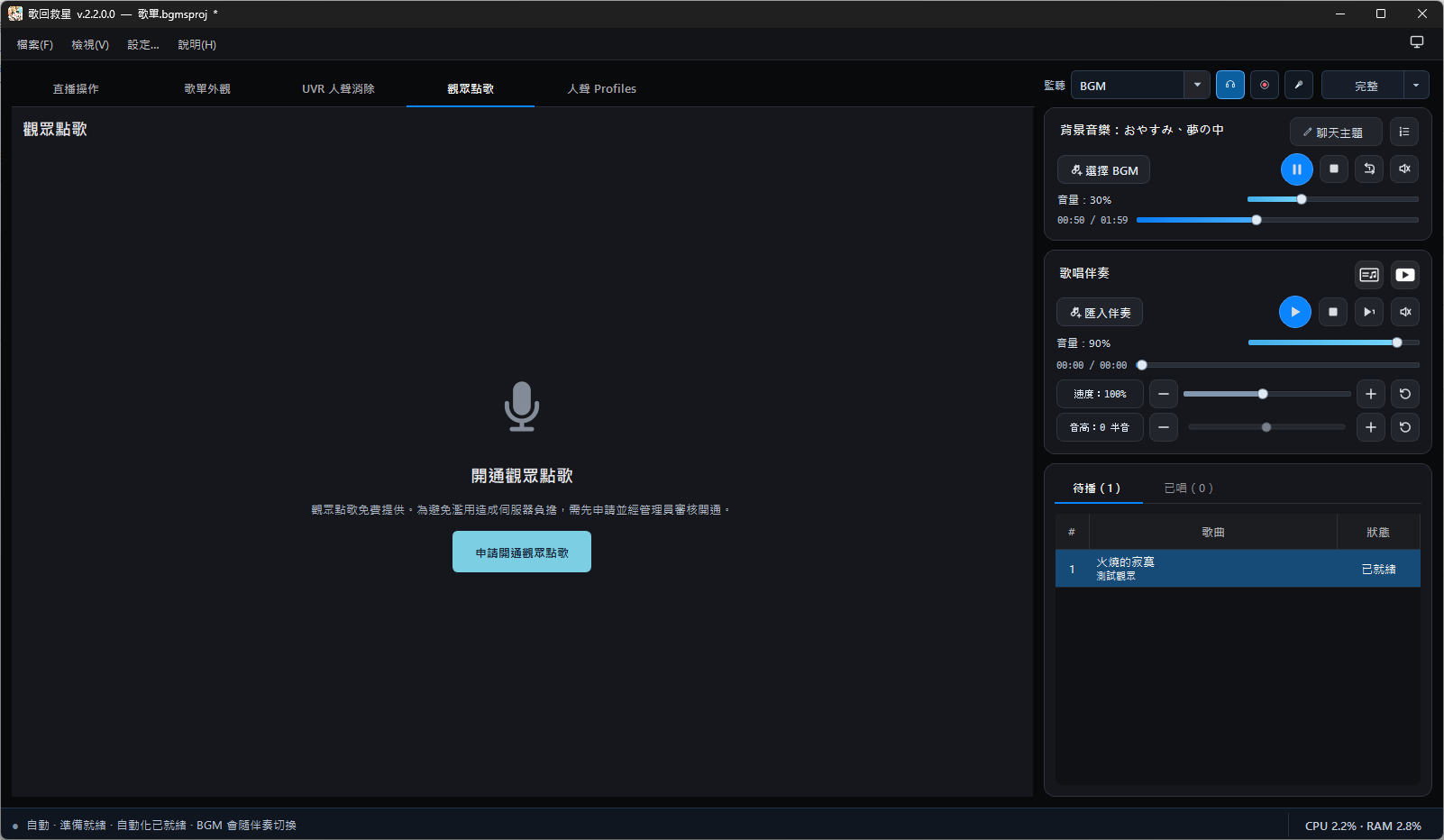
The application entry is shown before activation. - Fill in and review the applicationEnter a unique streamer ID, name, brief introduction, channel URL, email and Discord ID. The ID accepts 3–50 lowercase letters, digits, hyphens or underscores. Use an https:// channel URL. Use your streamer name, not your legal name. A short introduction is enough; the email and Discord ID may belong to your agent or company. The application message is optional—compliments are welcome if you do not know what to write! Review the application, then confirm submission. Submitted details cannot be edited directly, so check your contact information first.
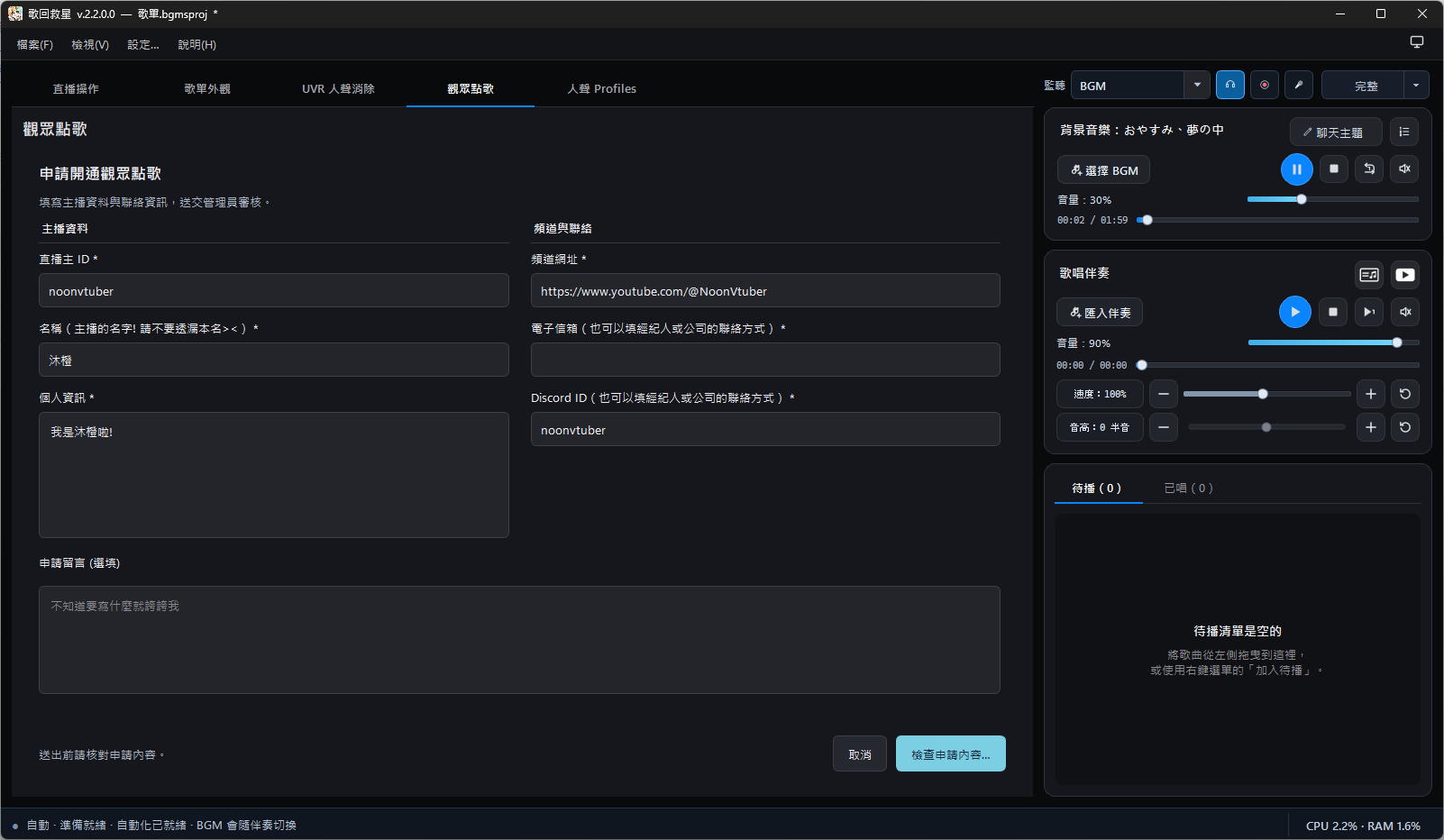
The email is hidden in this screenshot; a real application still requires it. - Wait for approvalWait for administrator review, then select Check activation status. The request controls appear after approval and connection. Do not submit duplicate applications while waiting.
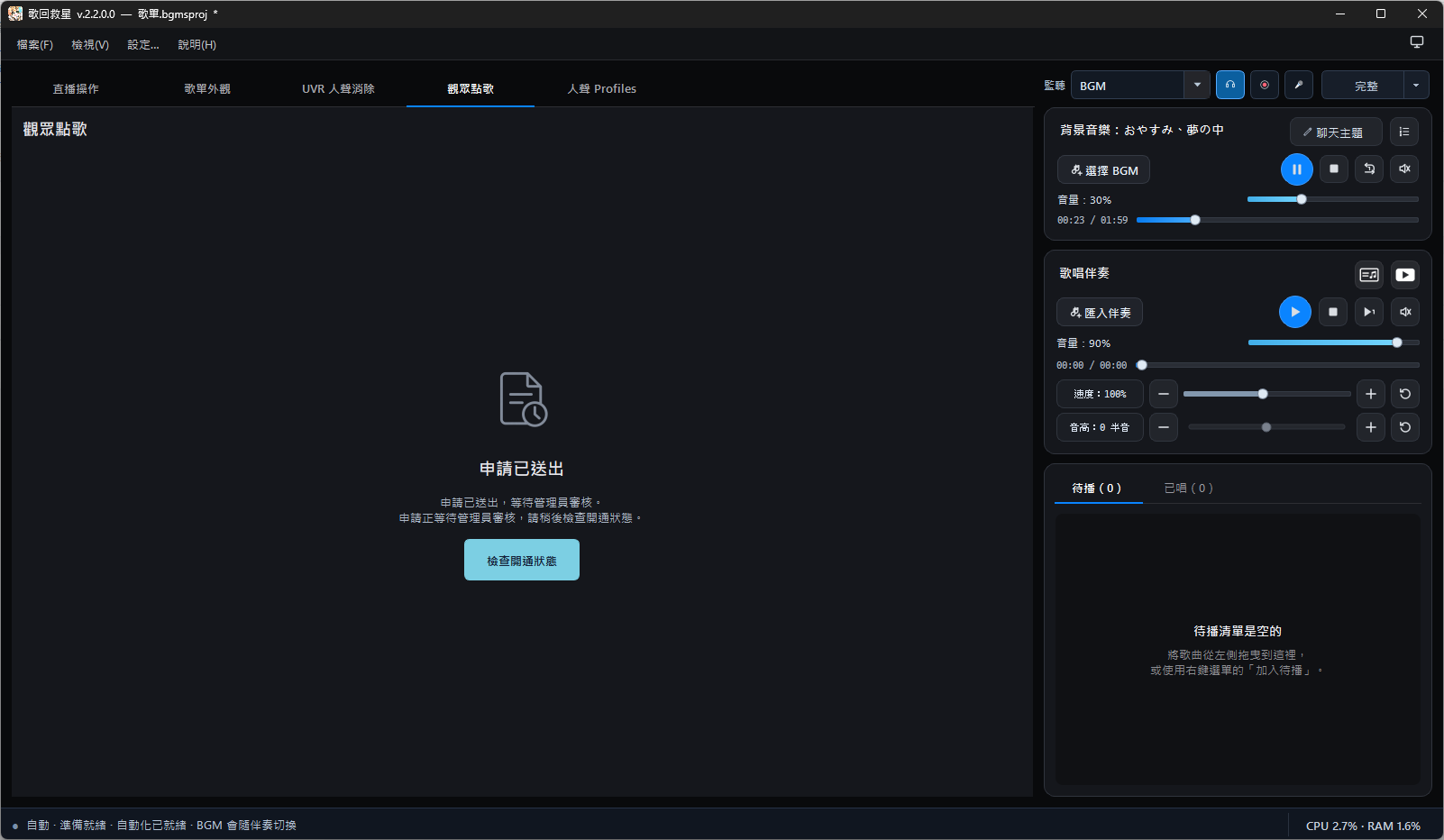
Check activation status after submitting the application.
The app generates and saves the device identity on this computer. You do not need to create, record or type a login password. Later starts connect automatically using the saved identity.
Publish a songbook and open a session
- Check the project and public detailsOpen the project you will sing from. Check song titles, performers and categories. In Audience Requests, check your public name and optionally set a profile image and session name. A blank session name uses today's date.
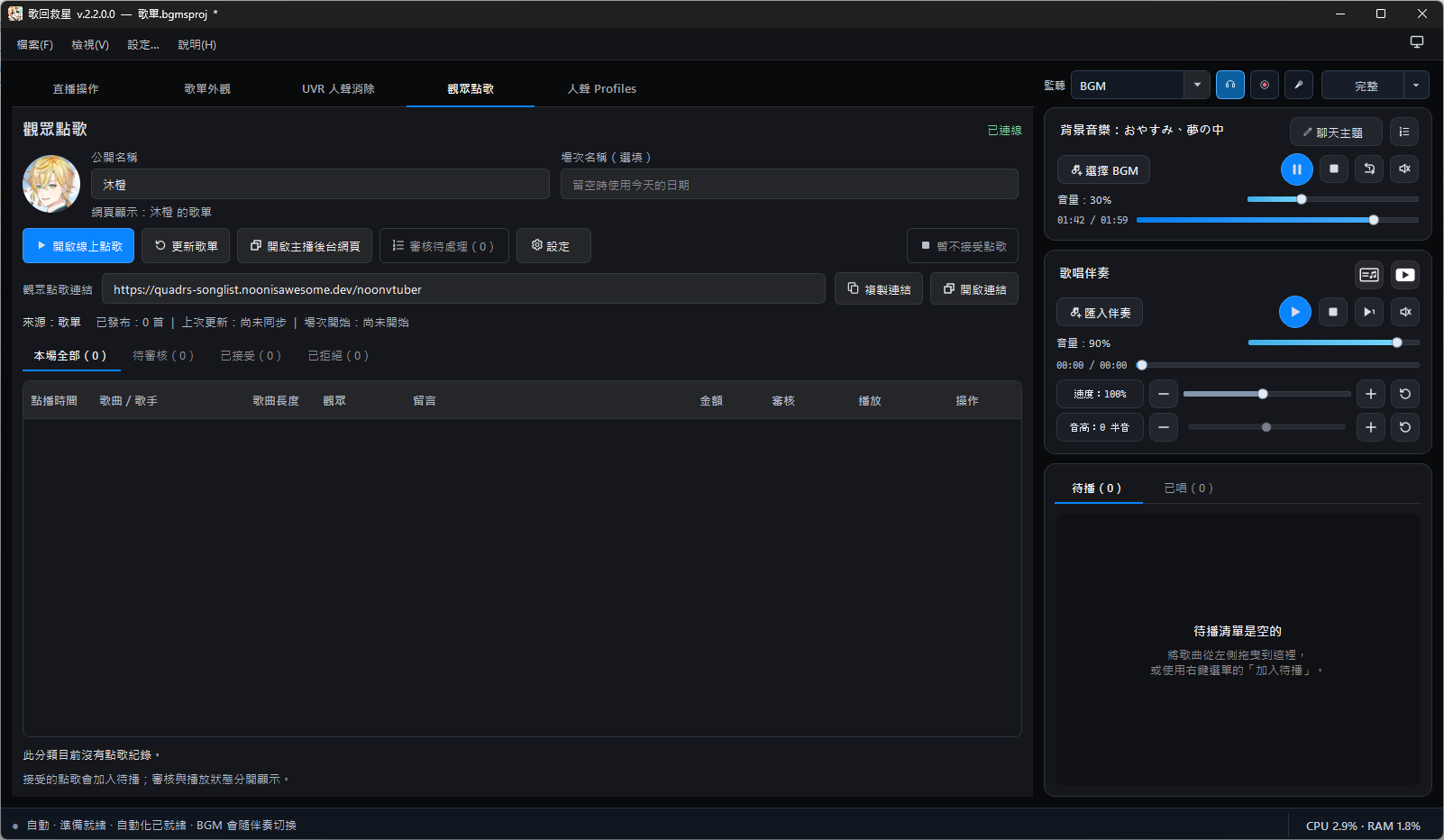
No session is open here; the published song count is zero. - Publish this session’s songbookSelect Start online requests and confirm. This publishes the current project's songbook and starts this request session.
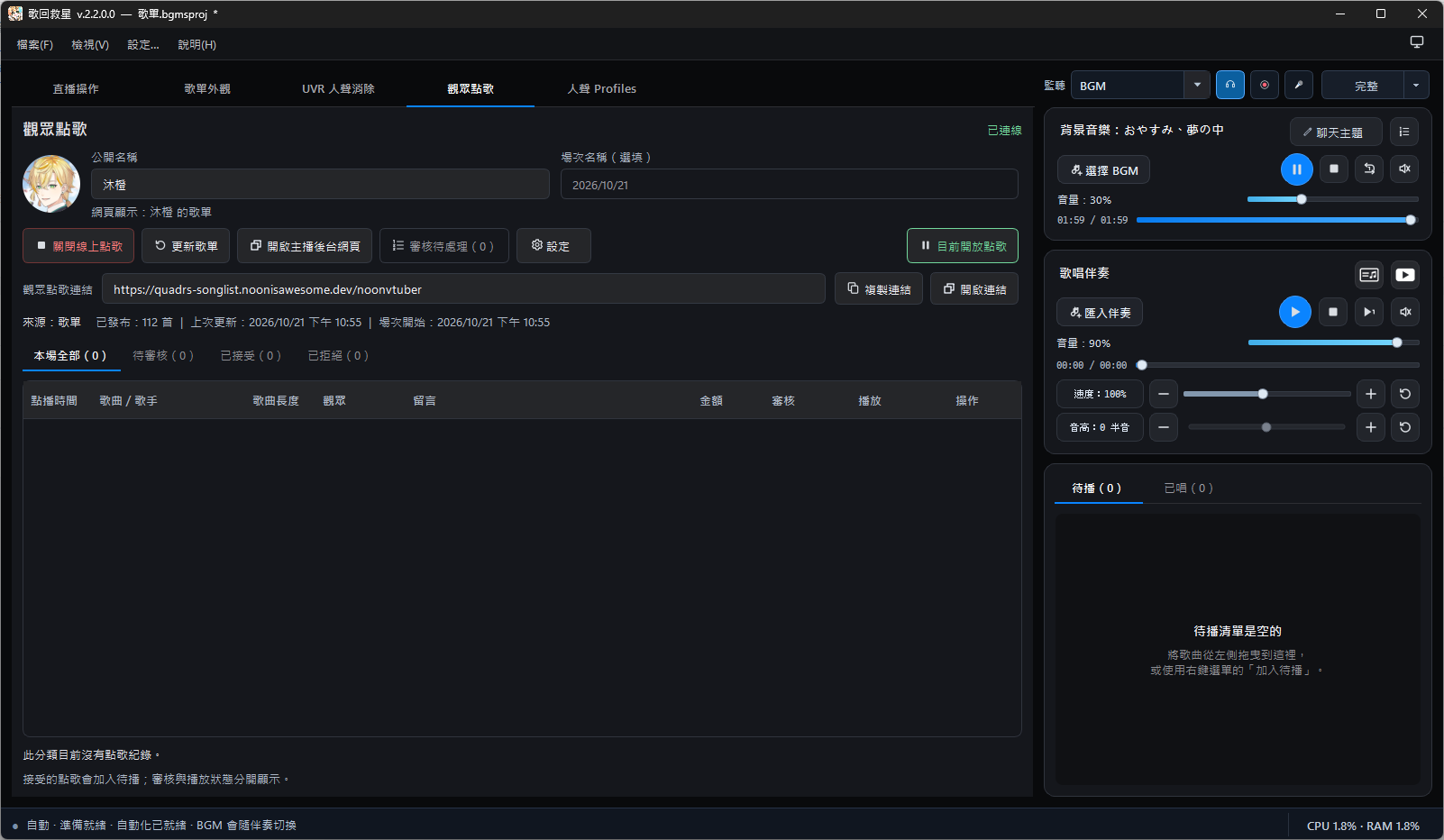
This example session has 112 published songs. - Share the viewer request linkCopy the viewer link displayed by the app into your stream description, chat or social post. Share the complete generated link; viewers do not need S3S installed. Open that link to check the viewer page. Viewers can search or filter songs, enter a nickname and optional message, and confirm their request.
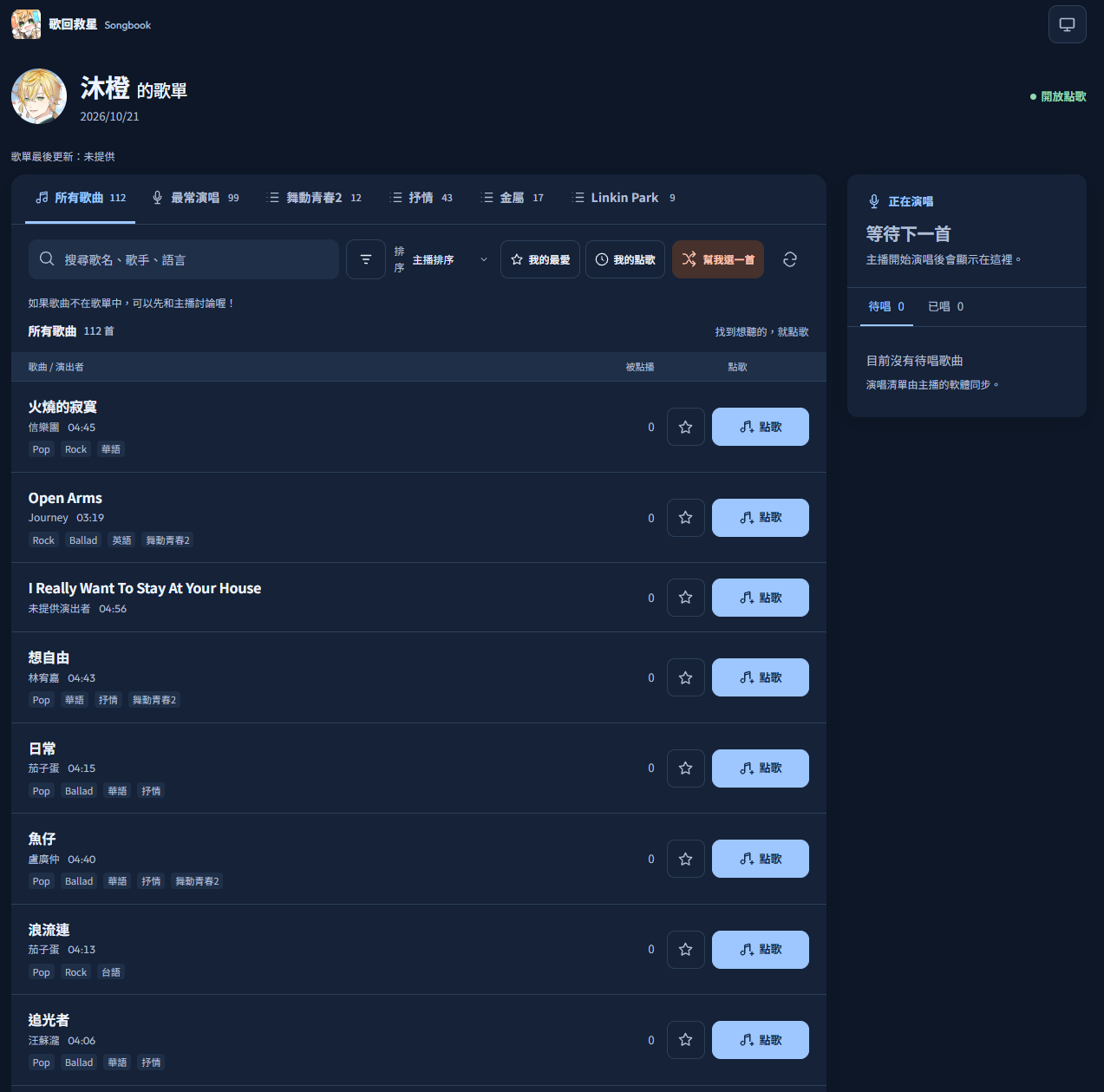
This is the public songbook website for viewers.
The published catalog contains song titles, performers, durations, genres, languages, custom playlist categories and request availability. Publishing it does not upload your local audio files, source paths, lyrics or voice-effect settings. The viewer website receives requests; it does not play your local accompaniment for viewers.
After editing songs or switching projects, check the source and choose Update song list. A local edit does not mean the website has already changed. Check the published song count and last-update time. The local songbook/lyric links used by OBS are different from the viewer request link.
Review requests and arrange Reserve
New requests produce a notification count on Audience Requests. Open the tab or Review pending to read the song, viewer and message. Filter by all requests in this session, pending, accepted or rejected.
- Review a new requestNew requests appear in the tab and pending-review count. Open the review window, check the song, viewer and message, then choose Accept or Reject.
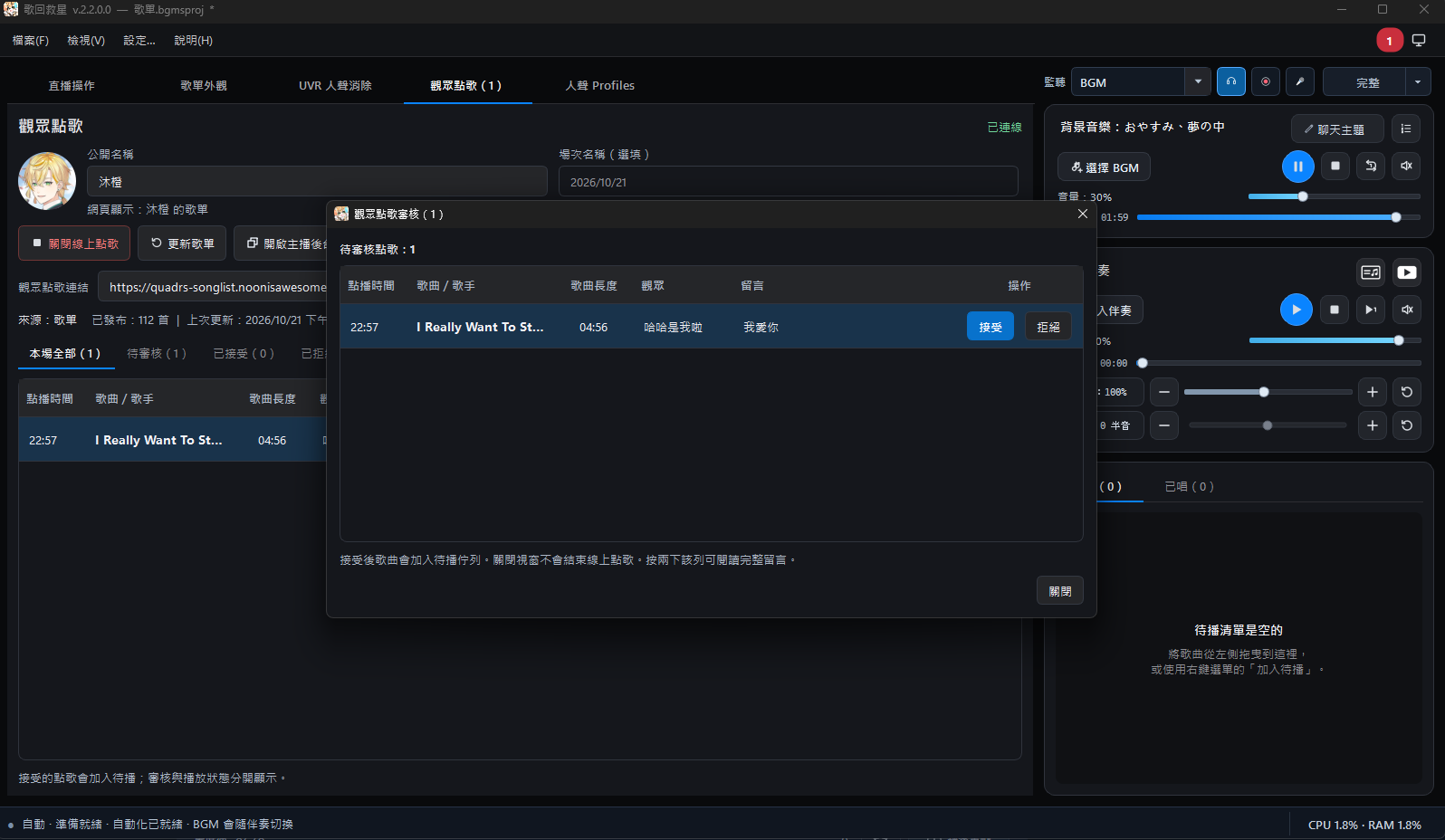
The review window shows the song, viewer, message and Accept/Reject controls. - Accept and add to ReserveAccepting changes the review status to Accepted and adds the song to Reserve on the right. It is still waiting for playback; accepting does not start the song.
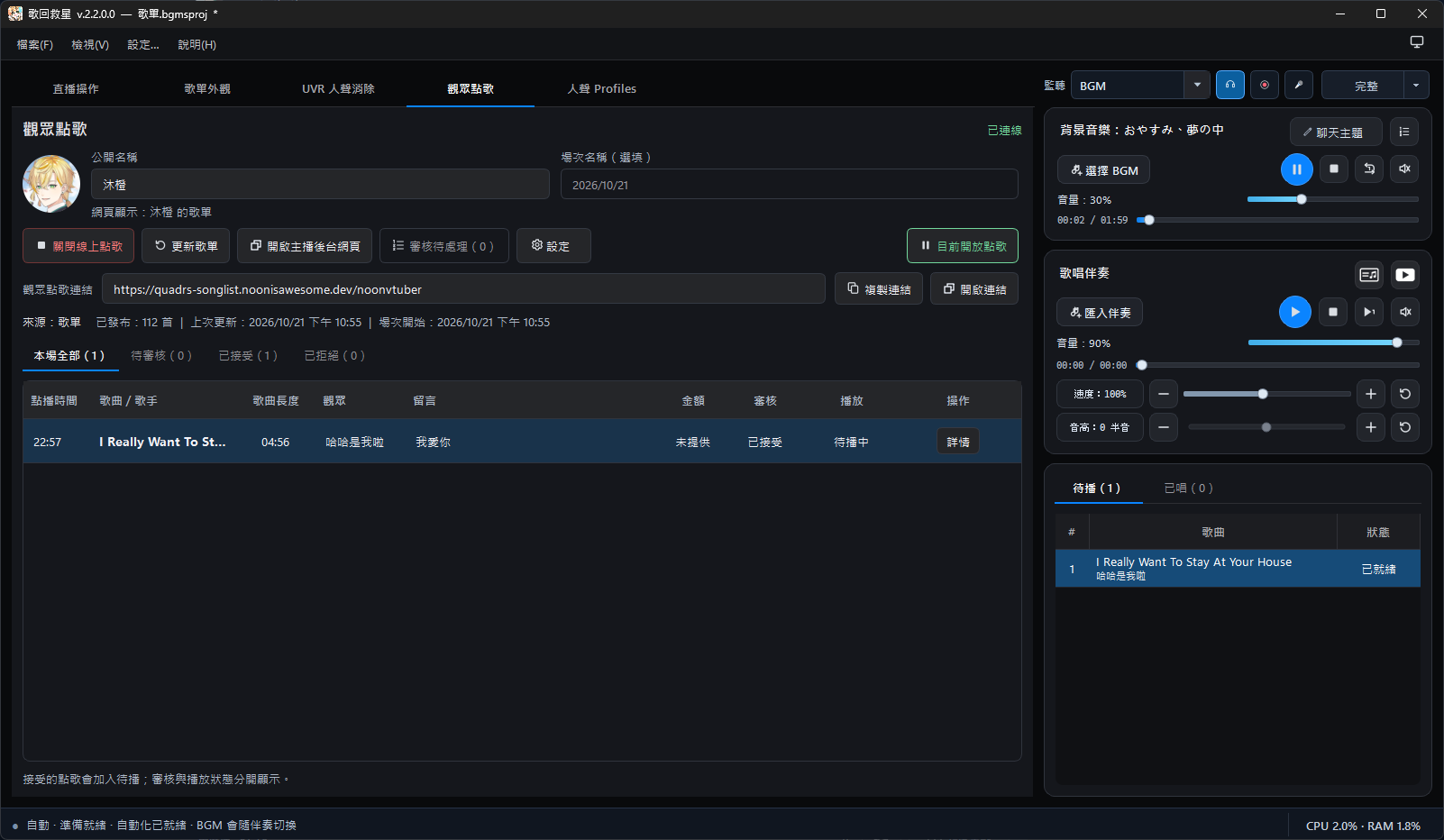
The accepted song also appears in Reserve on the right.
| Action or status | Result |
|---|---|
| Accept | Adds the song to the existing Reserve list; playback does not start immediately. |
| Reject | Keeps the review result without adding the song to Reserve. |
| Reserve | Use the usual drag-to-reorder and playback controls alongside manually added songs. |
| Playing / sung | Playback progress is separate from the review result. Accepted does not mean completed. |
Playback happens in the desktop app. Keep the current project’s audio sources available; if a file was moved or deleted, or a YouTube source is unavailable, fix the source before playback. See Library and playback for Reserve controls.
Pausing new requests keeps the session and existing records. Enable accepting requests again when ready. To finish this session, choose Close online requests and confirm. Local Reserve and this session’s request history remain available; start online requests again for the next session.
Manage requests from mobile Studio
Choose Open broadcaster admin page in the desktop app. Use the page’s access options to enter Studio in a browser or on your phone, select the session, then review requests or read its records. Studio requires streamer authorization. Keep its private access link or signed-in session to yourself; the viewer request link is the one to share publicly.
Mobile Studio manages online requests while songs still play on the desktop. It is not a phone audio player or a replacement for the device identity stored on the computer. If a private entry link has expired, open Studio again from the app. A browser account sign-in is not a desktop identity backup.
Request limits and identity backups
Open Settings; use Collapse settings or Return to request list to return.
- Unfinished-request limit: enable the per-viewer limit, set 1–20 songs with minus, the editable number or plus, then Save. Pending requests and accepted requests that have not been sung count toward this limit.
- Back up streamer identity: export an encrypted
.s3sidentityfile with a backup password of at least eight characters. Keep both safely. This is a password you choose for the backup, separate from the automatically saved login credentials. - Restore streamer identity: on another computer or after a storage problem, restore the file using its password. End the current online session first. A project file alone cannot restore the identity; a lost backup password cannot be recovered.
Connection and activation help
| Screen or situation | What to do |
|---|---|
| Awaiting review / application denied | Check activation status or contact the administrator. Avoid duplicate applications. |
| Reconnecting | The app retries connections and renews login credentials automatically. You do not need to sign in manually every few hours. Wait for the network, or use reconnect if needed. |
| Server maintenance | Online actions are blocked temporarily and your saved identity is retained. Wait for maintenance to end or use Retry connection later. |
| Server temporarily unavailable | A network or service problem does not mean your account was deleted. Check the network and retry. The maintenance screen appears only when the server explicitly identifies maintenance. |
| Device disabled / requests suspended | The streamer device has been disabled. Check activation status or contact the administrator; reinstalling does not remove the restriction. |
| Streamer account removed | After the server confirms removal, the app returns to a screen where you can apply again. Resolve connection errors first if removal has not been confirmed. |
| Restore streamer identity | Restore your existing encrypted backup instead of repeatedly applying for a new identity. |
Blocking a viewer device restricts that viewer browser’s requests; it is different from disabling a streamer device. Network, maintenance and approval restrictions affect cloud requests. Your local library, Reserve and player remain usable; YouTube and other online audio sources still need a network connection. Verify online record updates after reconnection; an old website status is not a current result while offline.